Procore / SiteSpec Photo Link
Table of Contents
Objective
To create an automatic link between Procore photos tool and SiteSpec photos which uploads all photos published to either system to the corresponding project in the opposite system.
Things to Consider
- Required User Permission: 'Admin' on the Photos tool
- It's important to confirm no duplicate projects have been created in SiteSpecs.
Demo

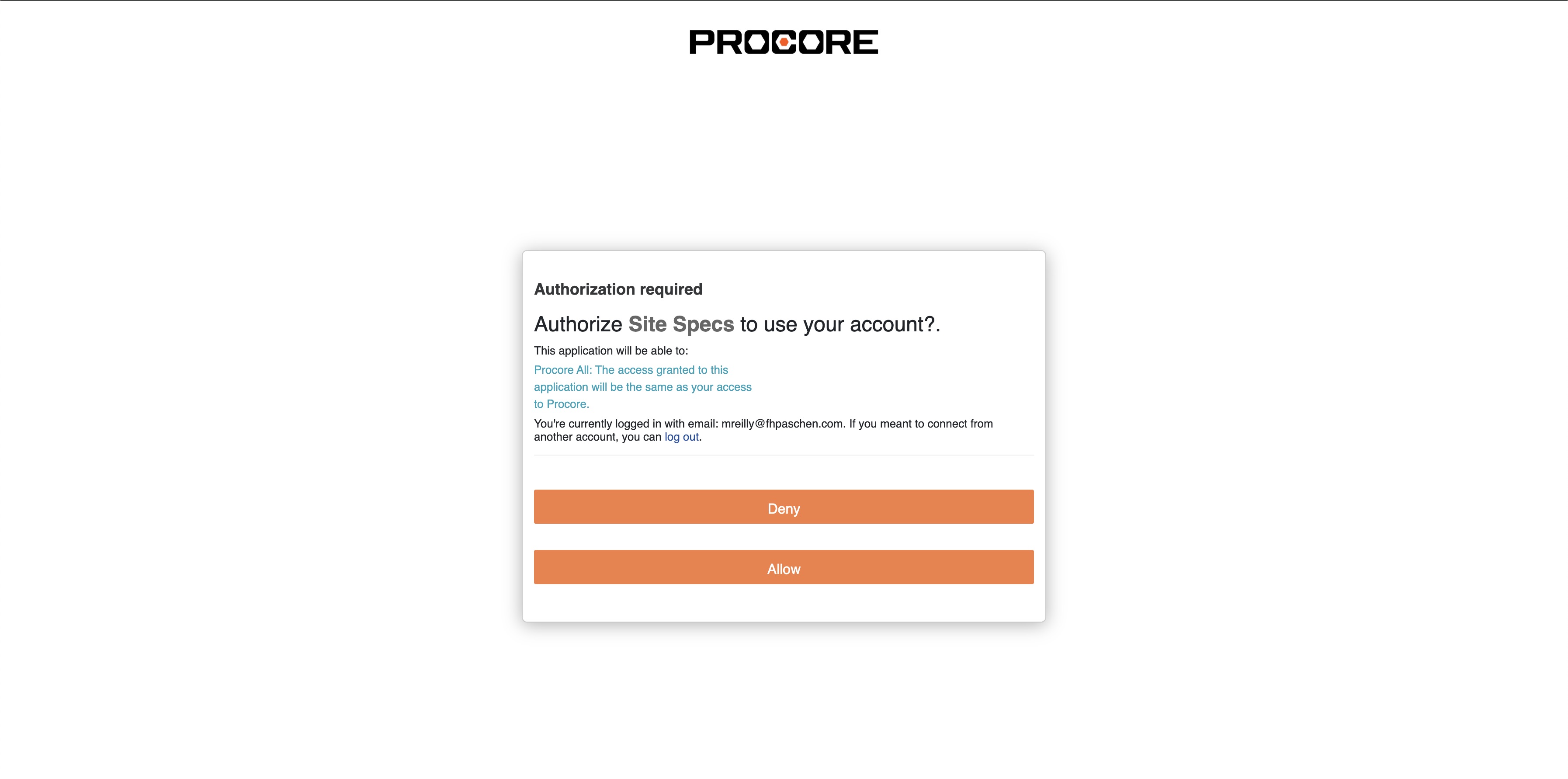
Steps
- Go to your project's SiteSpecs page from an internet browser.
- Click the Sign into Procore button in the upper right hand corner.
- Click the Link to Procore button in the upper right hand corner.
- Find your corresponding Procore project. (Note: You can sort the list by clicking on the column names.)
- Make your selections and click the Link button to the left of your project.
Issues or Questions?
Contact Support at Support@SiteSpecs.io